Setting up Email Verification
Require email verification before users can access their account
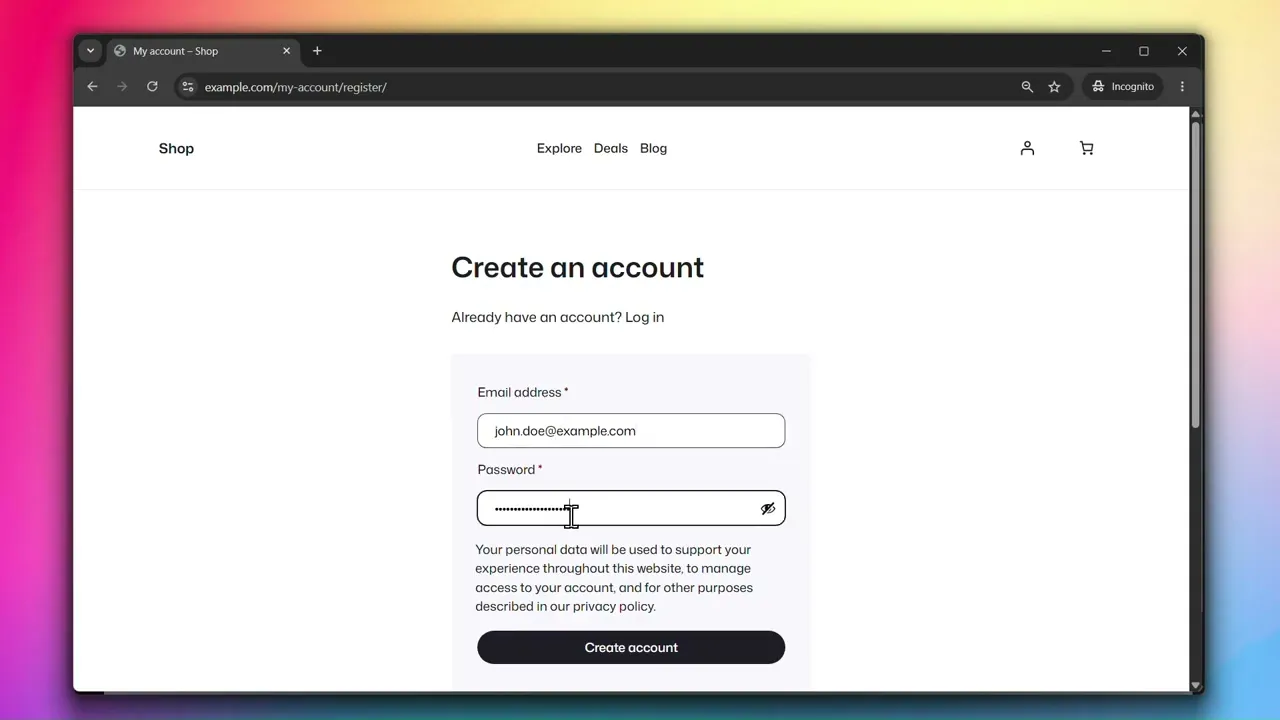
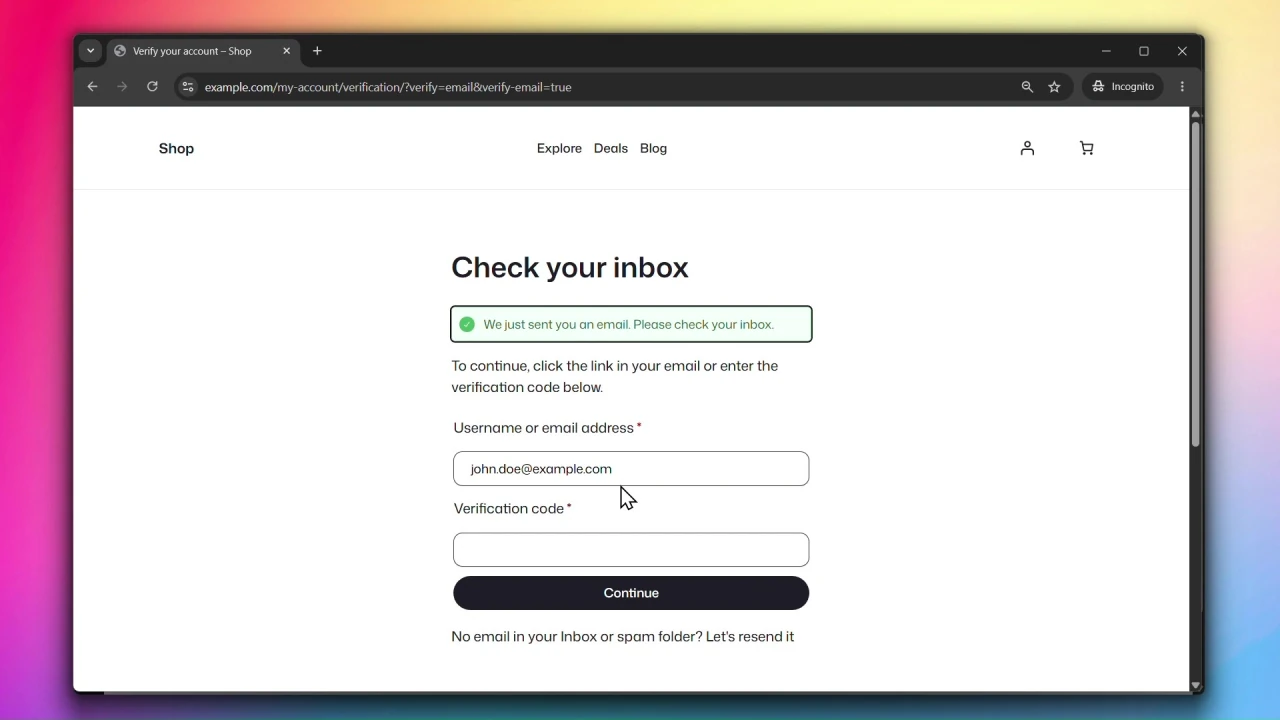
Email Verification adds an extra layer of security to user accounts by requiring users to verify their email address. Users receive a 6-digit verification code or a verification link sent via email.
Accessing Email Verification Settings
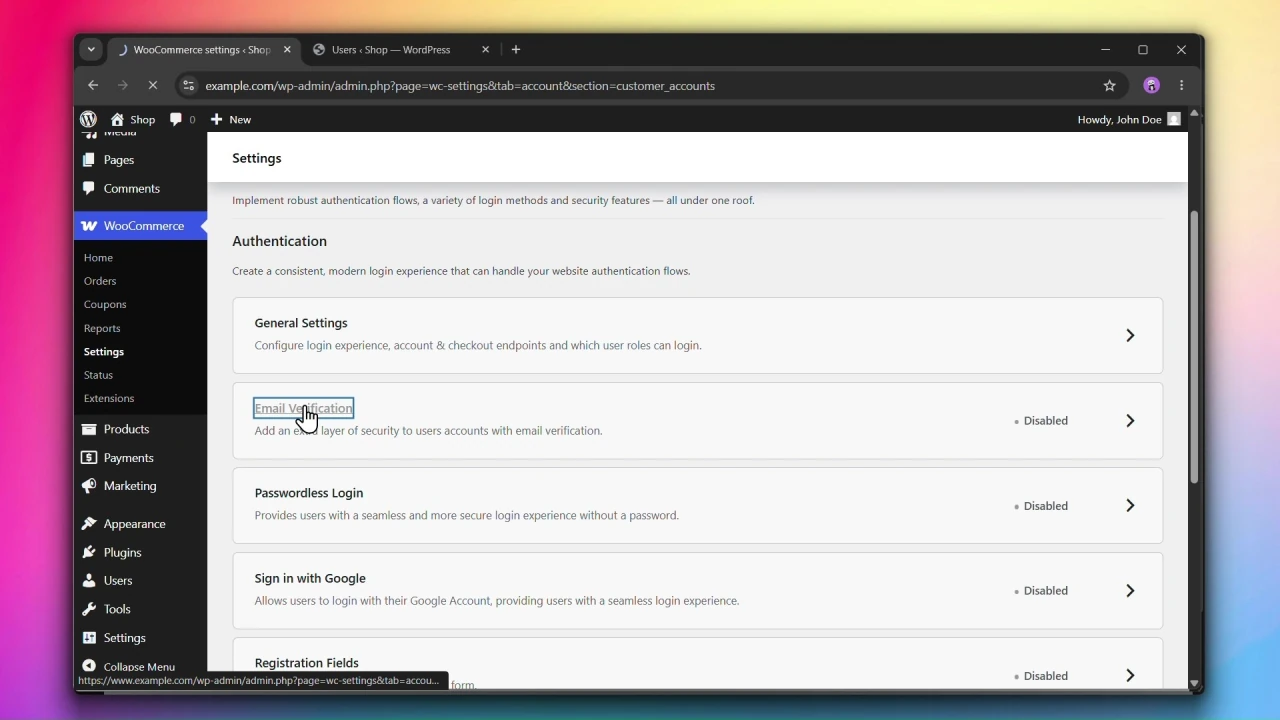
Go to WooCommerce > Settings > Accounts & Privacy > Customer Accounts and click on Email Verification.
Steps
Step 1: Enable Email Verification
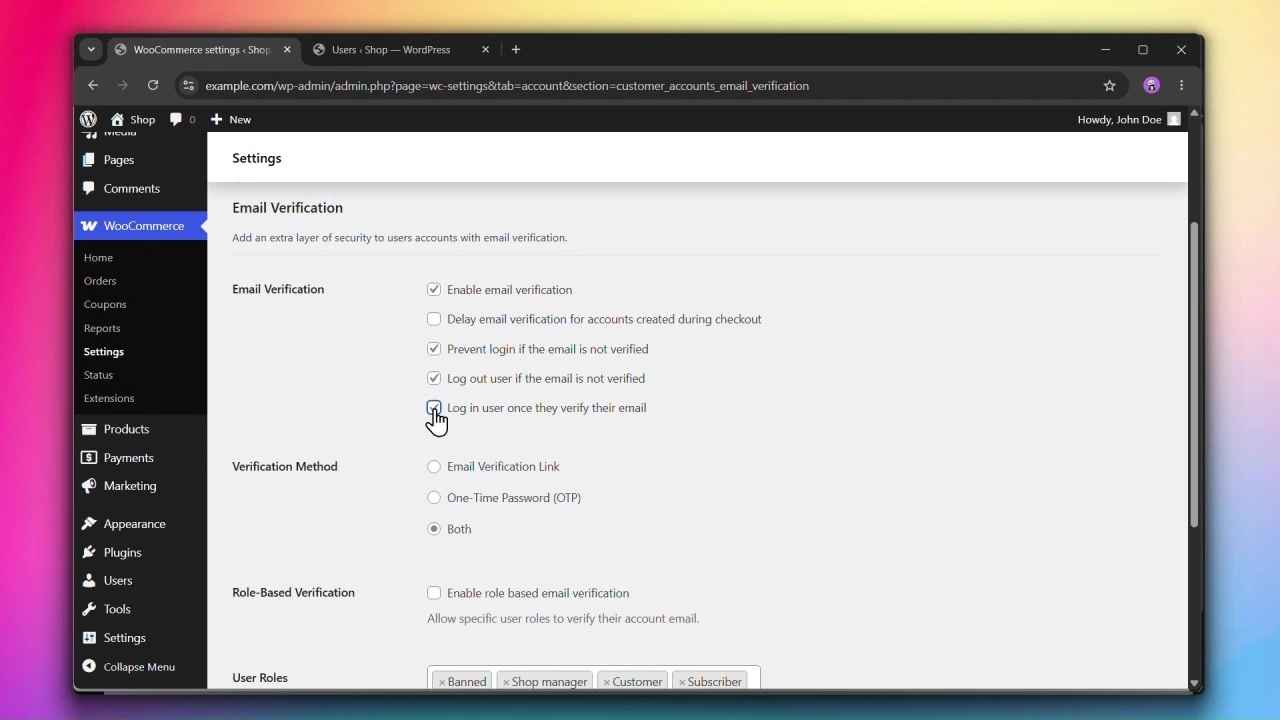
Under Email Verification, check Enable email verification to turn on the feature.
Step 2: Configure verification behaviour
Choose how verification is enforced by checking or unchecking the following options:
- Delay email verification for accounts created during checkout — defers verification until after the order is placed.
- Prevent login if the email is not verified — blocks users from logging in until their email is verified.
- Log out user if the email is not verified — automatically logs out users with an unverified email.
- Log in user once they verify their email — automatically logs the user in as soon as they verify their email.
Step 3: Choose a Verification Method
Under Verification Method, select how users receive their verification challenge:
- Email Verification Link — a one-click verification link sent to the user’s inbox.
- One-Time Password (OTP) — a 6-digit verification code the user enters on the verification page.
- Both — lets the user choose between a verification link and a 6-digit code.
Step 4: Configure Role-Based Verification (optional)
If you want to require verification only for specific user roles:
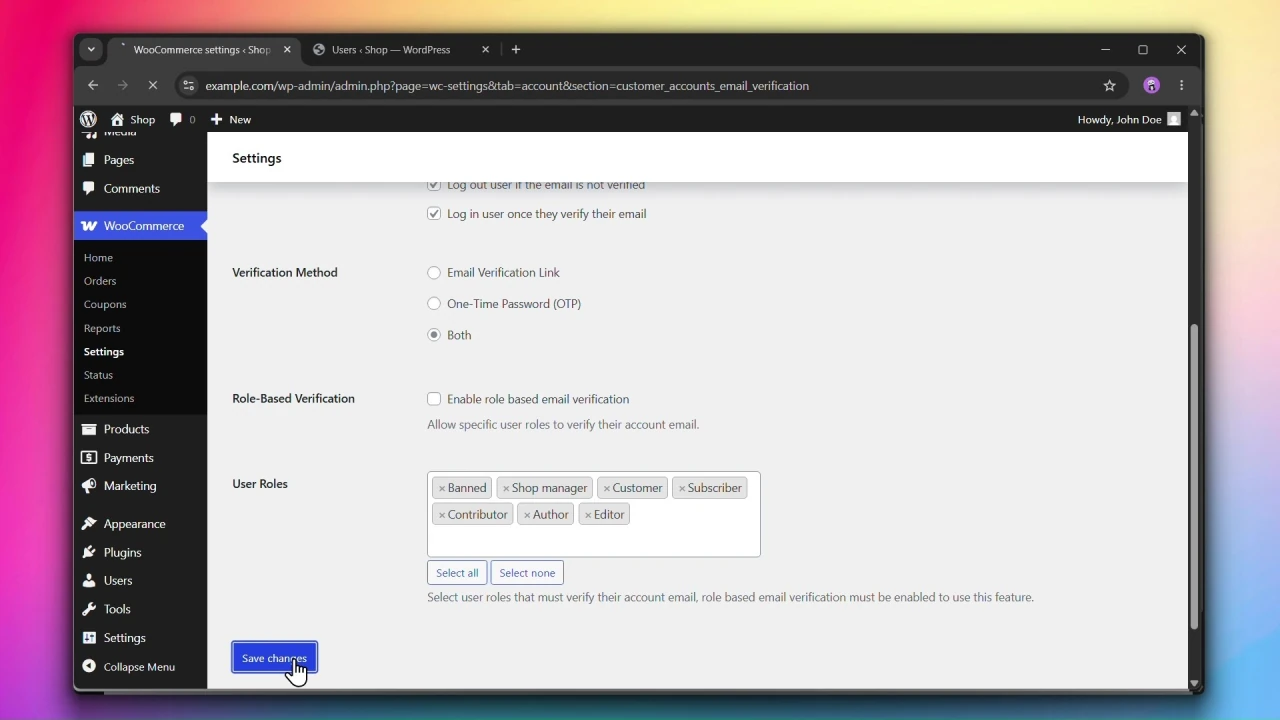
- Under Role-Based Verification, check Enable role based email verification.
- Under User Roles, select the roles that must verify their email.
Step 5: Click Save changes
Click Save changes to apply your settings.
Managing Verification Status
Users List
When Email Verification is enabled, an Account Verification column is added to the WordPress Admin > Users list. Each user displays one of the following statuses:
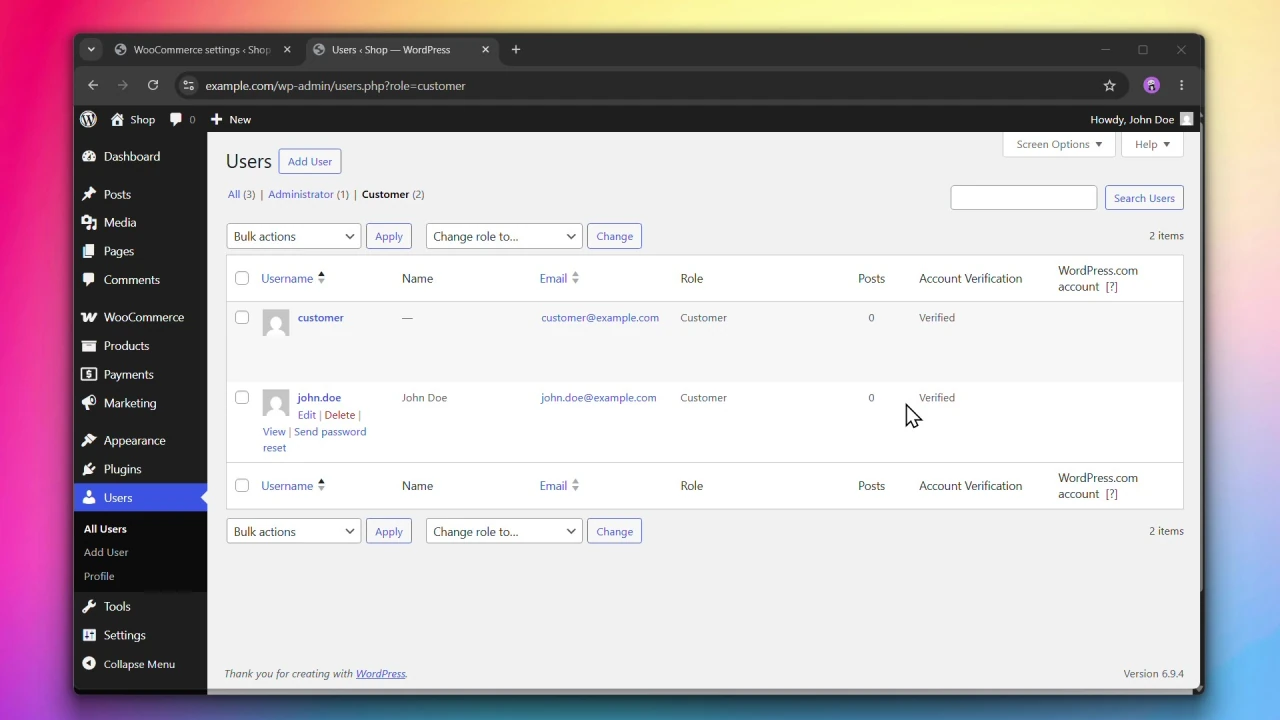
- Verified — the user has verified their email address.
- Pending — a verification email was sent but the user has not verified it yet.
- Unverified — the user registered before Email Verification was enabled.
- Optional — the user is not required to verify their email (e.g. their role is excluded from Role-Based Verification).
Manually Verifying a User
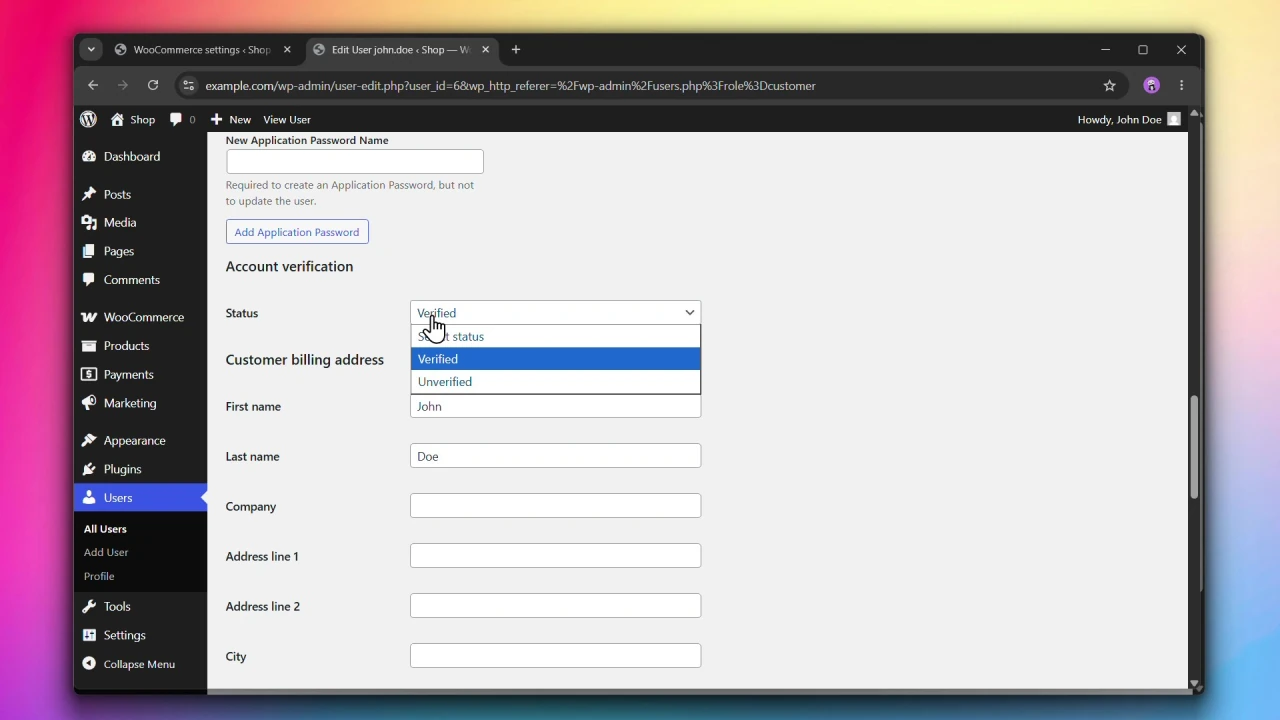
You can manually change a user’s verification status from the Edit User page.
- Go to WordPress Admin > Users and click on a user to edit them.
- Scroll down to the Account Verification section.
- Under Status, select Verified or Unverified from the dropdown.
- Click Update User to save.