Bot Protection for WooCommerce
Step-by-step guide to setting up Bot Protection for WooCommerce
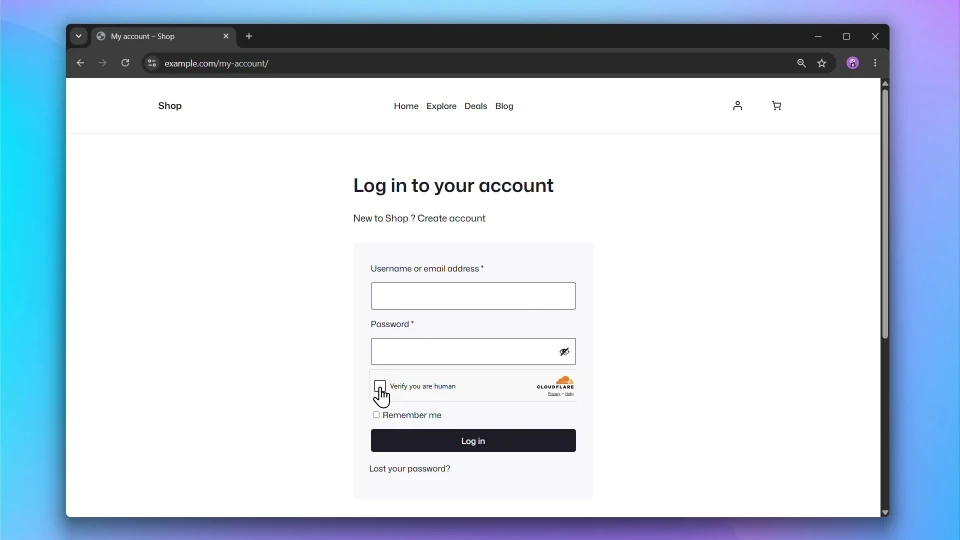
Bot Protection adds Cloudflare Turnstile to your WordPress and WooCommerce forms, protecting your site from bots, spam registrations, and more without impacting the user experience.
Cloudflare Turnstile protects your forms from spam and bot abuse without showing visitors a CAPTCHA. It runs a challenge invisibly in the background and only interrupts users when suspicious behavior is detected.
Before You Start
You will need a free Cloudflare account to get your Site Key and Secret Key. Sign up or log in at cloudflare.com and go to Turnstile from the dashboard sidebar.
Accessing Cloudflare Turnstile Settings
Go to WooCommerce > Settings > Accounts & Privacy > Bot Protection.

Steps
Step 1: Get your Turnstile keys from Cloudflare
- Log in to your Cloudflare dashboard.
- Go to Turnstile from the sidebar.
- Click Add widget.
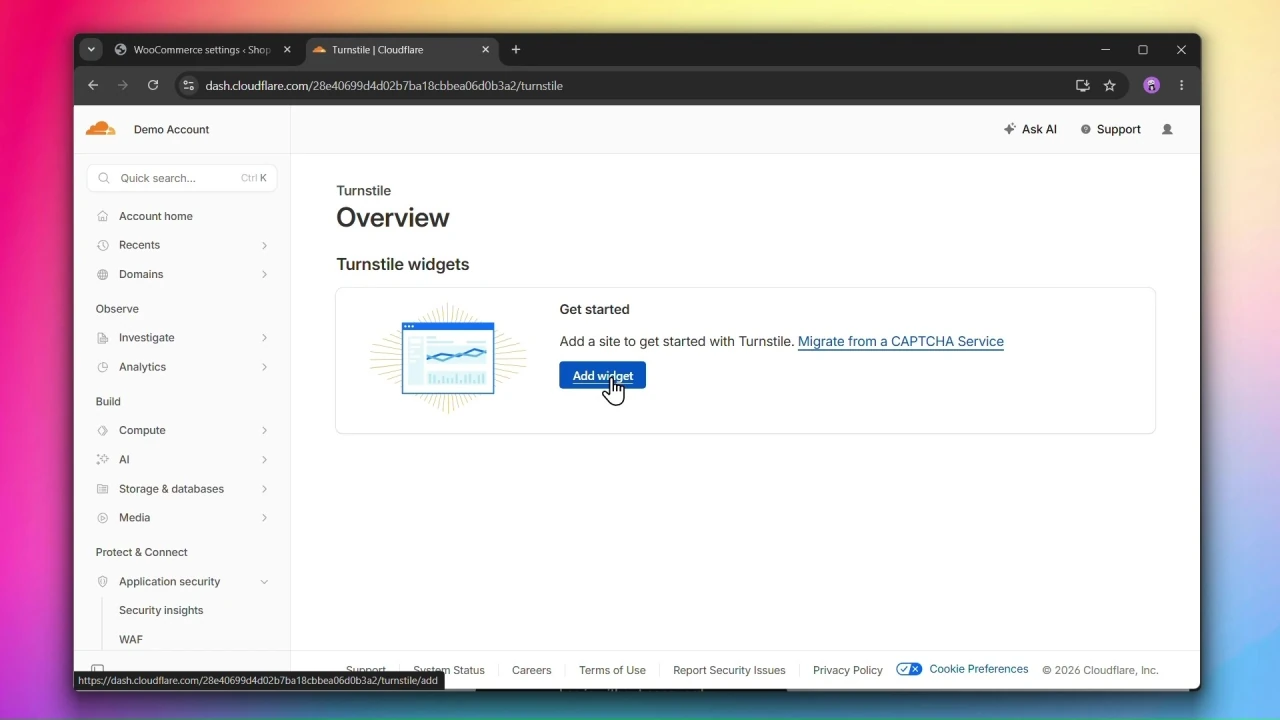
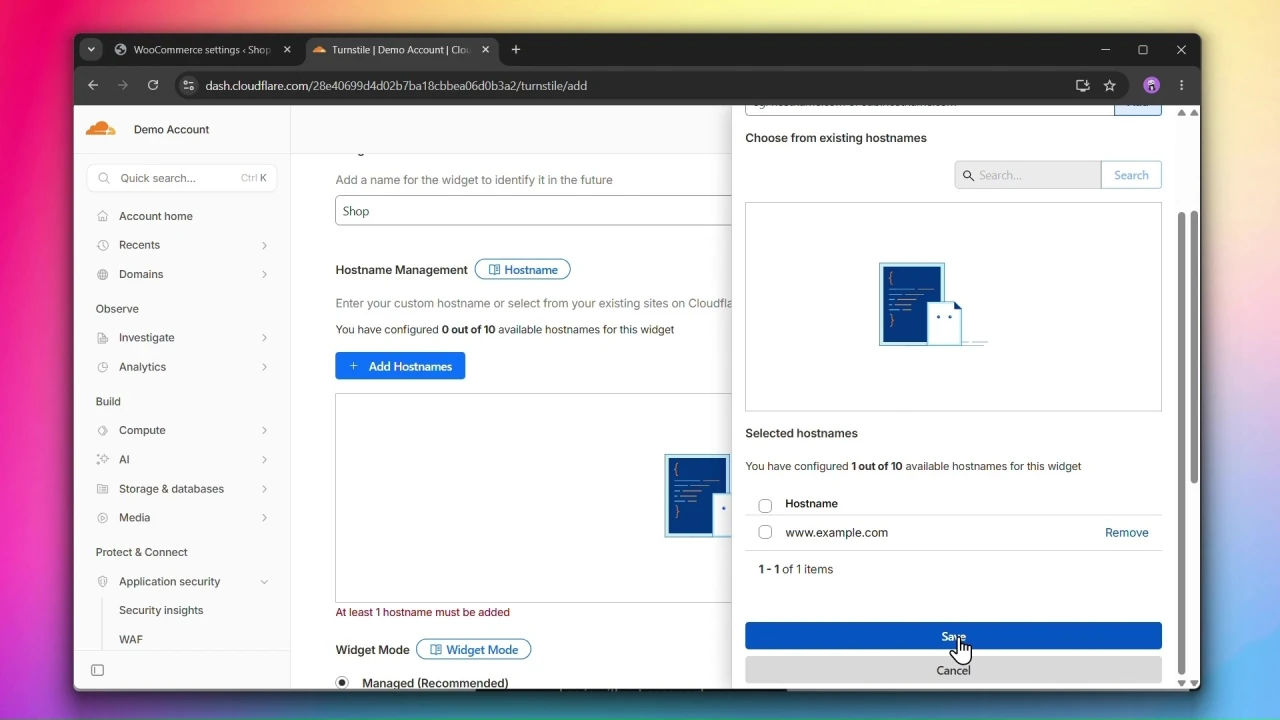
4. Enter widget name and add hostnames.
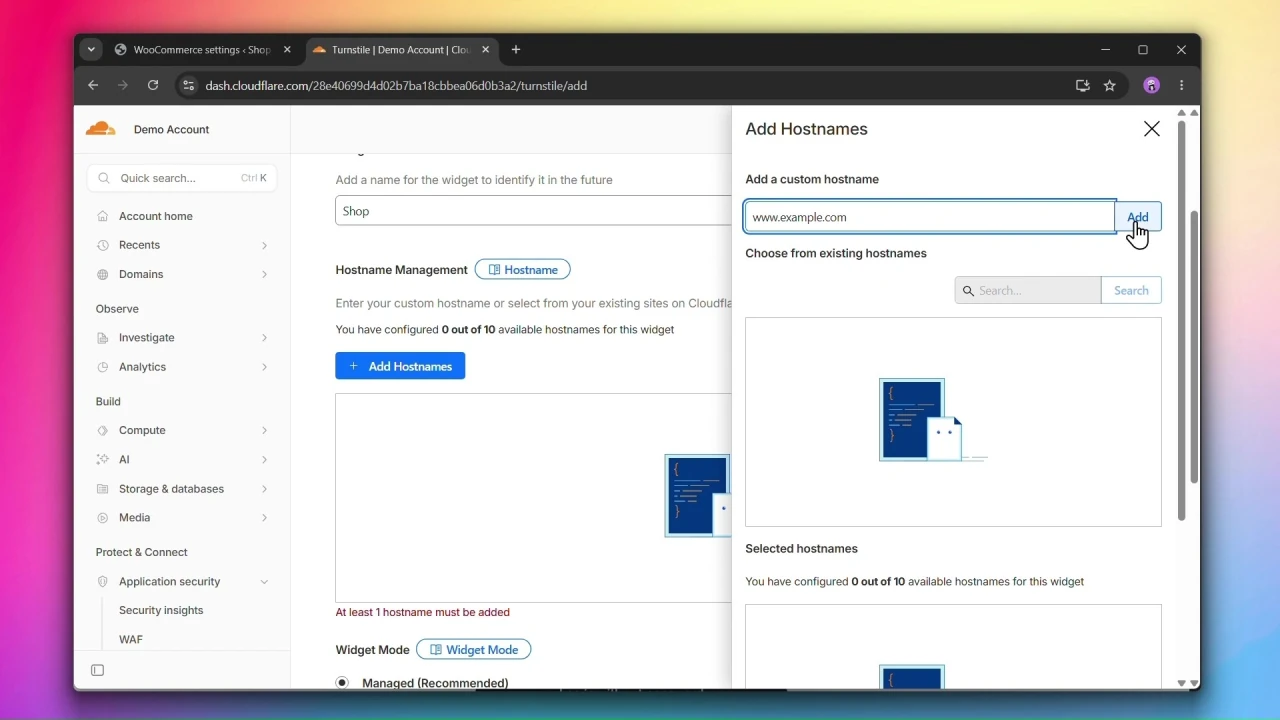
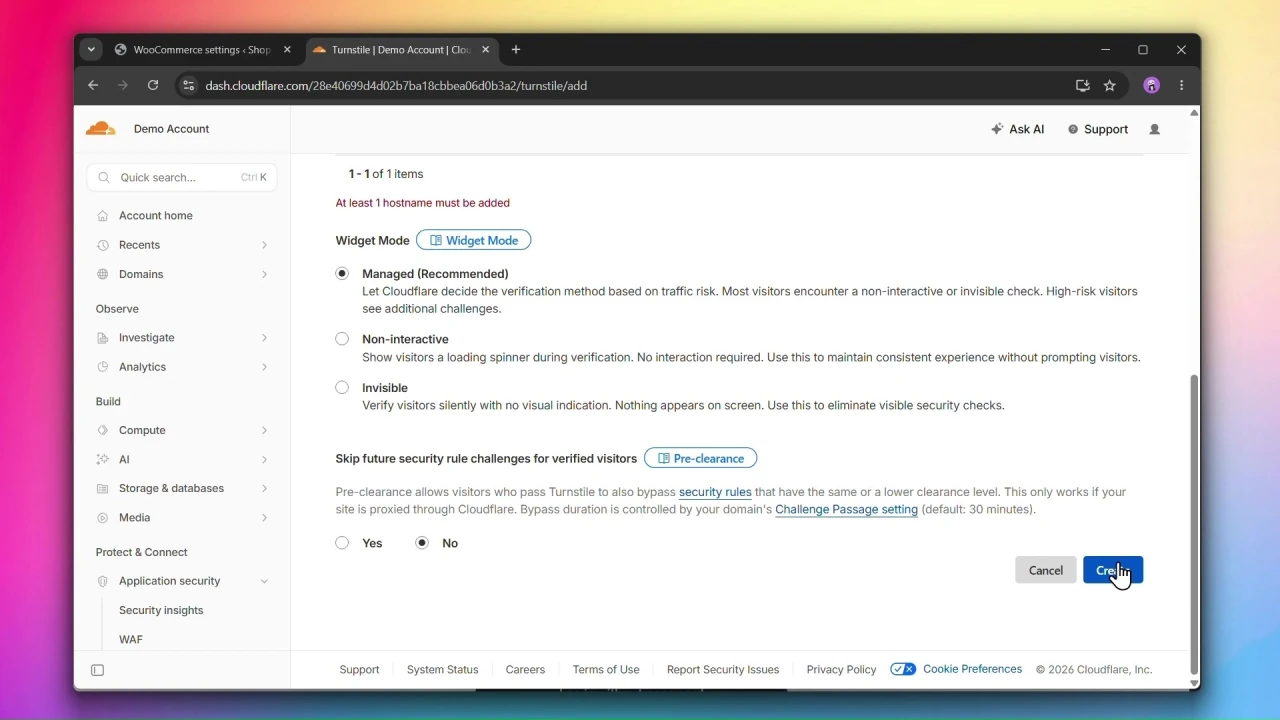
5. Choose managed widget mode
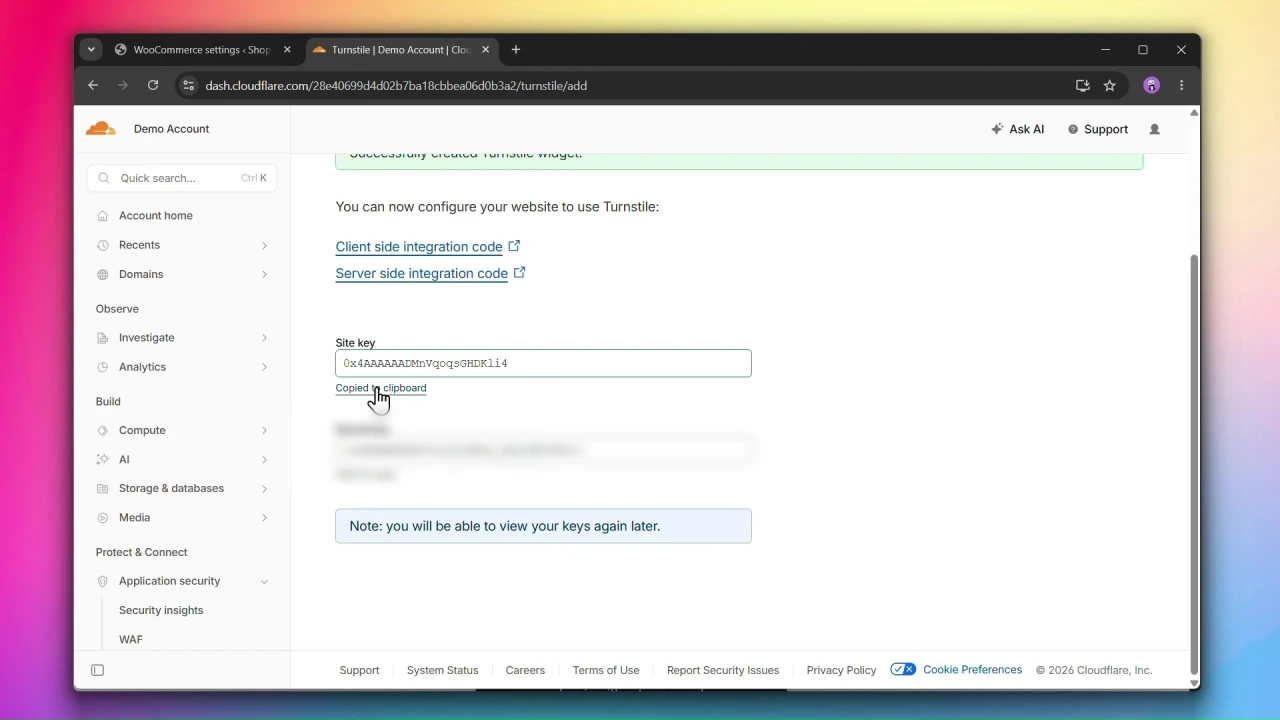
6. Copy the Site Key and Secret Key.
Step 2: Enable Cloudflare Turnstile
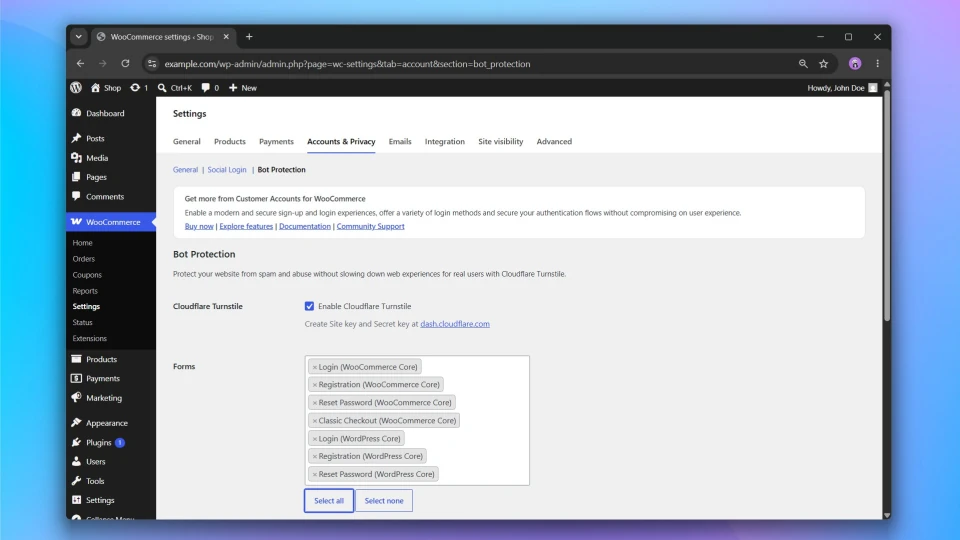
Under Cloudflare Turnstile, check Enable Cloudflare Turnstile.
Step 3: Select the forms to protect
Under Forms, select which forms you want Turnstile to appear on.
Supported forms
WooCommerce
- Login
- Registration
- Reset Password
- Classic Checkout
WordPress
- Login
- Registration
- Reset Password
Step 4: Enter your Site Key and Secret Key
- Paste your Site Key into the Site key field.
- Paste your Secret Key into the Secret key field.
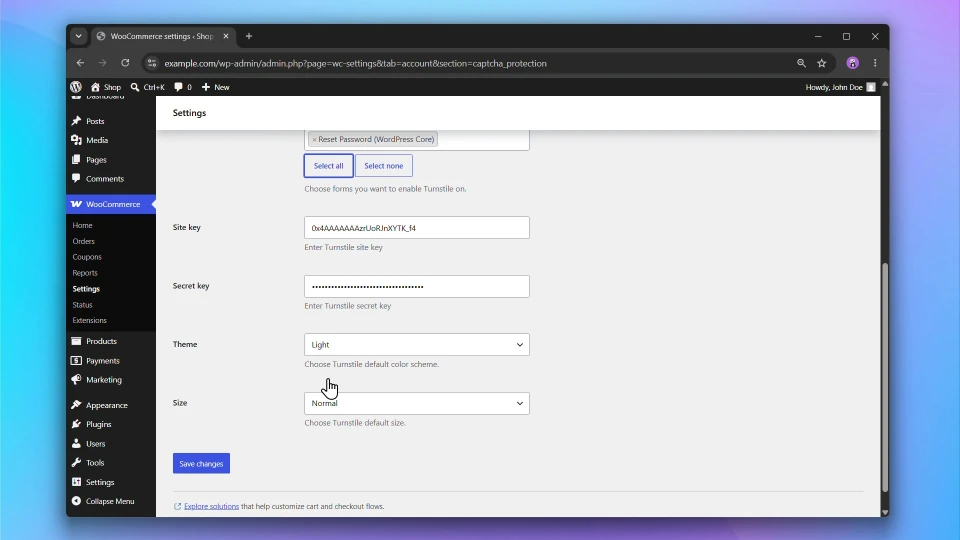
Step 5: Configure the widget appearance
- Theme — choose
Autoto match your site’s color scheme, or set it toLightorDarkmanually. Default:Auto. - Size — choose
Normalfor standard forms,Flexiblefor full-width layouts, orCompactfor tighter spaces. Default:Normal.
Step 6: Click Save changes
Click Save changes to apply your settings.