Configuring Cloudflare Turnstile
Protect your WordPress and WooCommerce forms with Cloudflare Turnstile
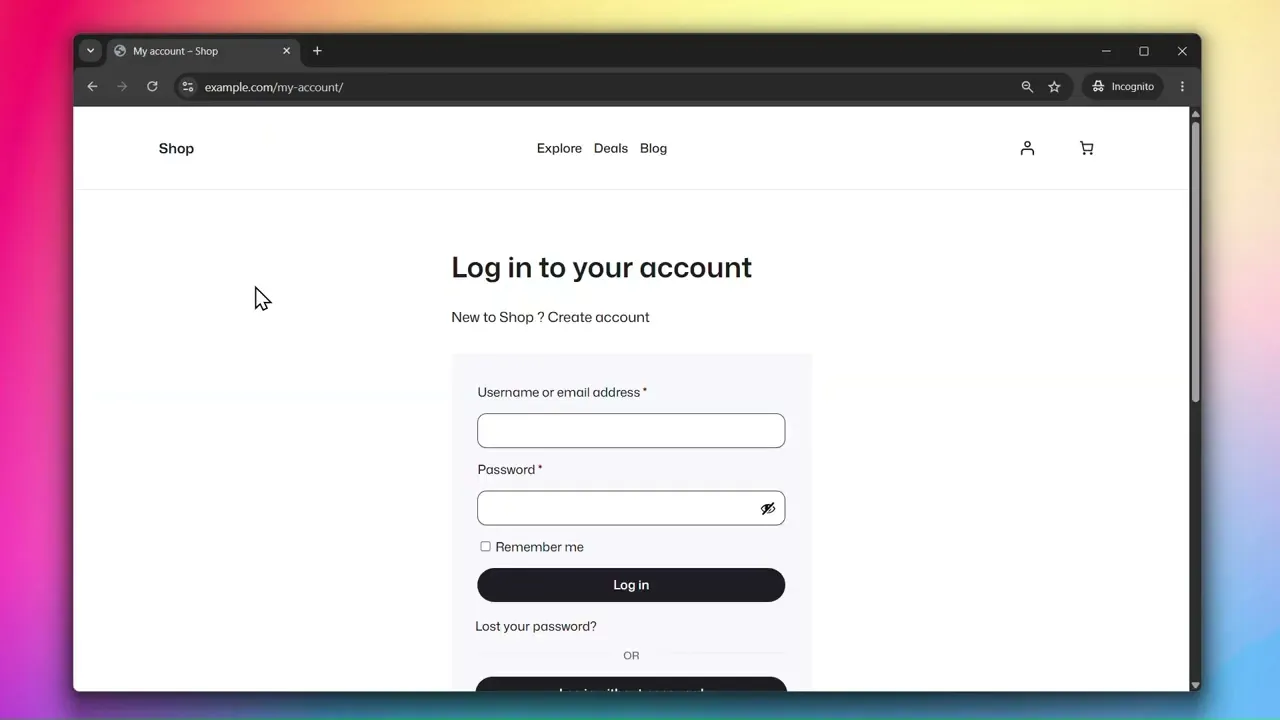
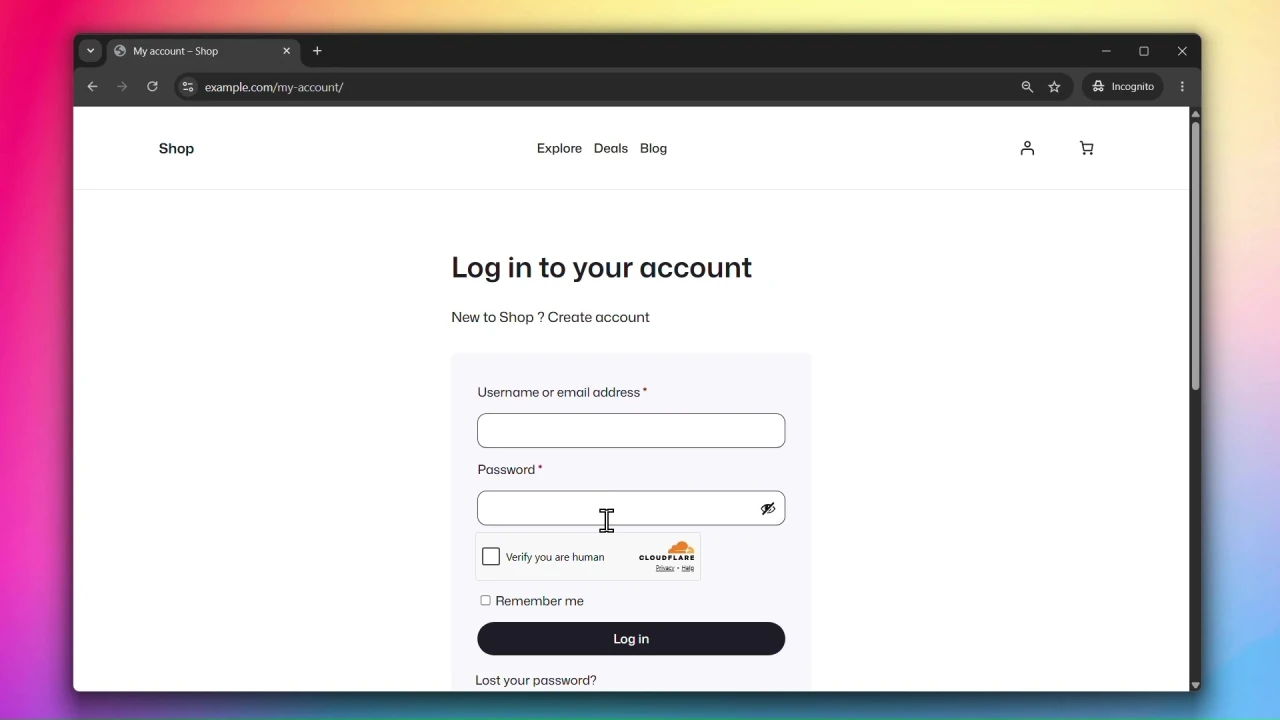
Cloudflare Turnstile protects your forms from spam and bot abuse without showing CAPTCHAs or puzzles to real users. It runs a challenge invisibly in the background and only interrupts users when suspicious behavior is detected.
Before You Start
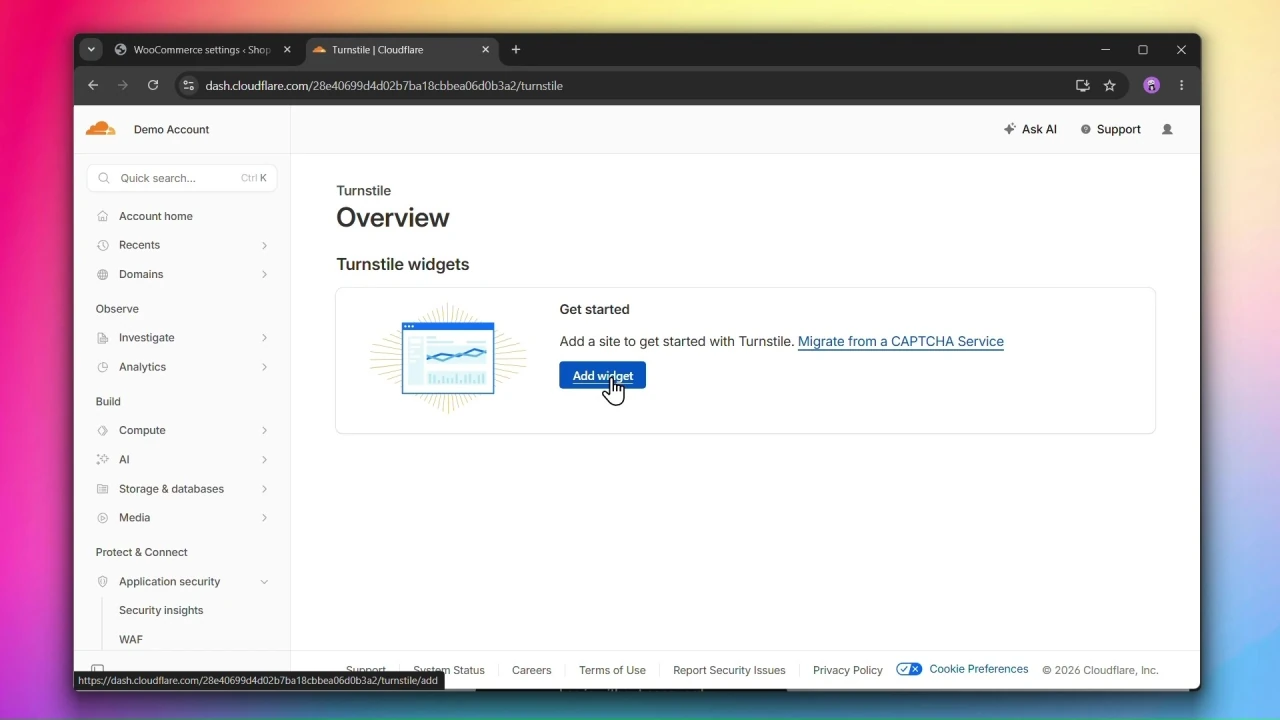
You will need a free Cloudflare account to get your Site Key and Secret Key. Sign up or log in at cloudflare.com and go to Turnstile from the dashboard sidebar.
Accessing Cloudflare Turnstile Settings
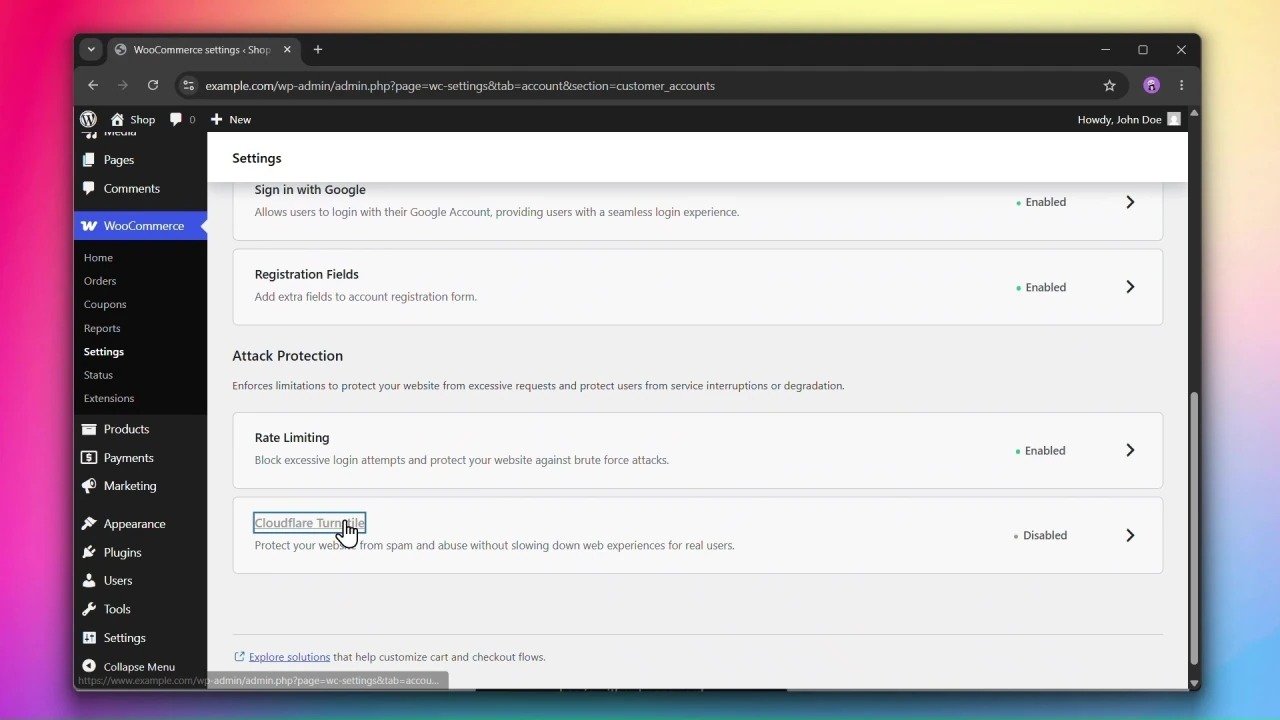
Go to WooCommerce > Settings > Accounts & Privacy > Customer Accounts and click on Cloudflare Turnstile.
Steps
Step 1: Get your Turnstile keys from Cloudflare
- Log in to your Cloudflare dashboard.
- Go to Turnstile from the sidebar.
- Click Add widget.
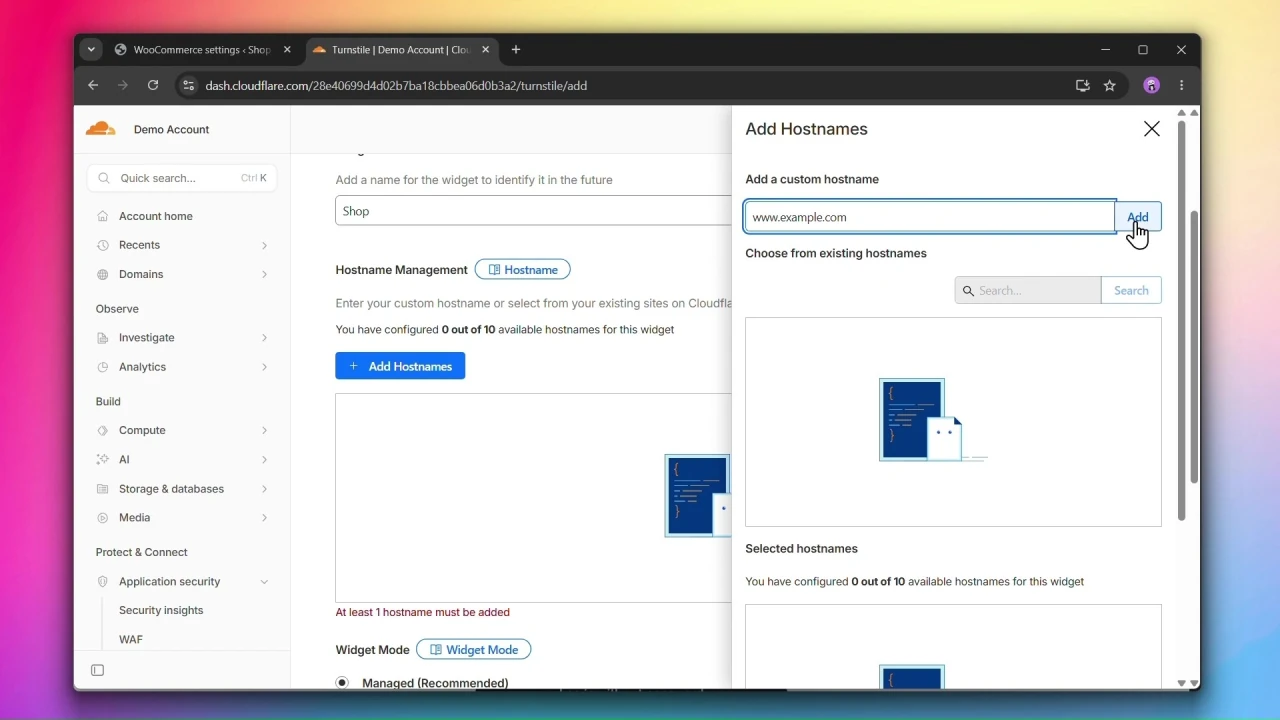
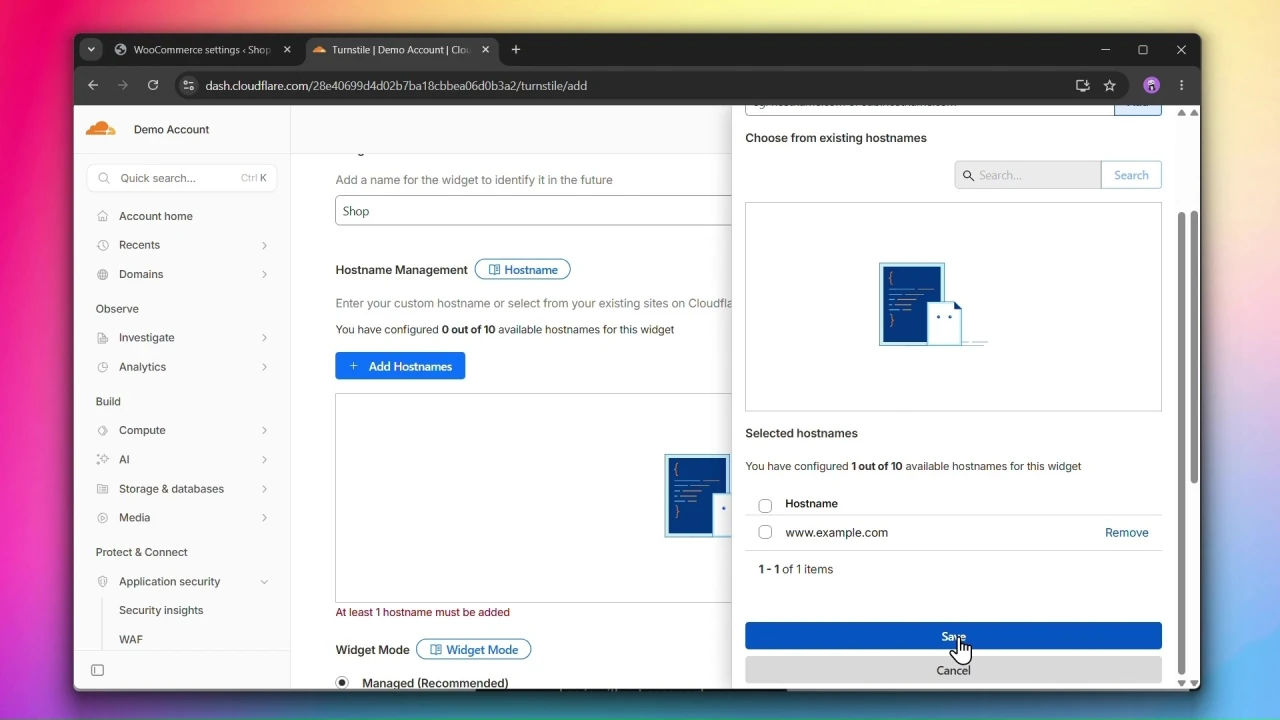
4. Enter widget name and add hostnames.
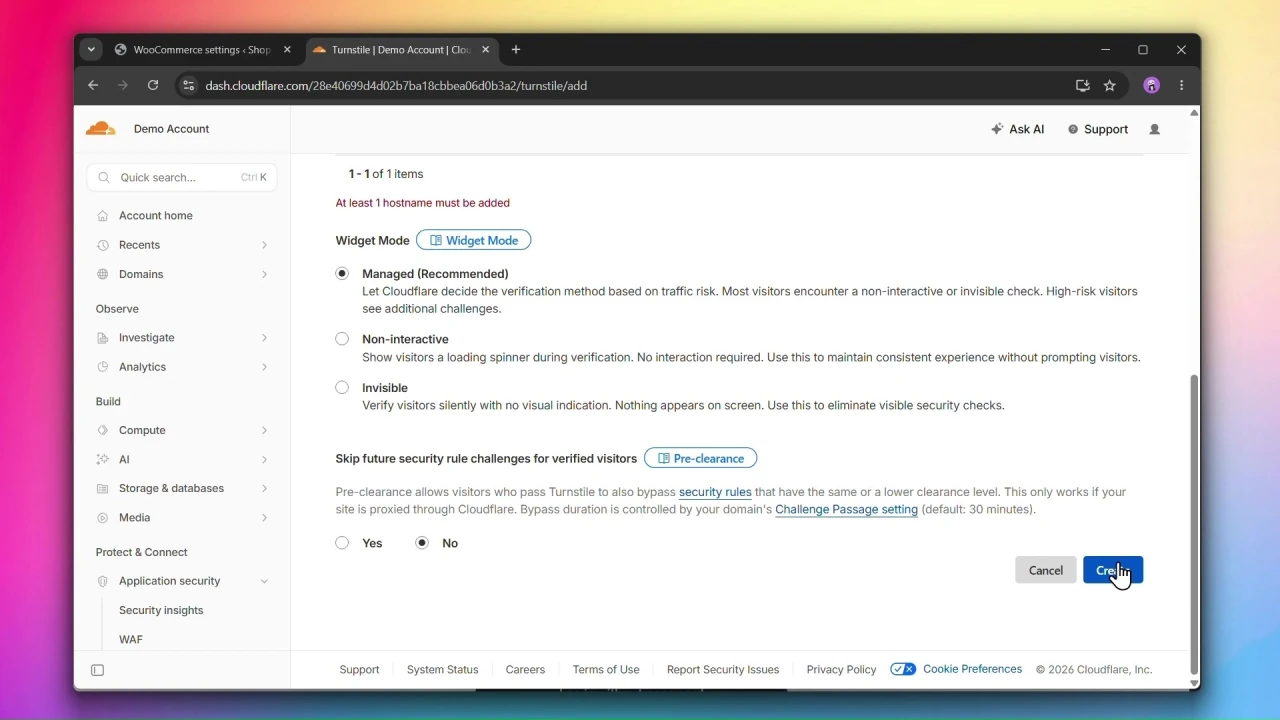
5. Choose managed widget mode
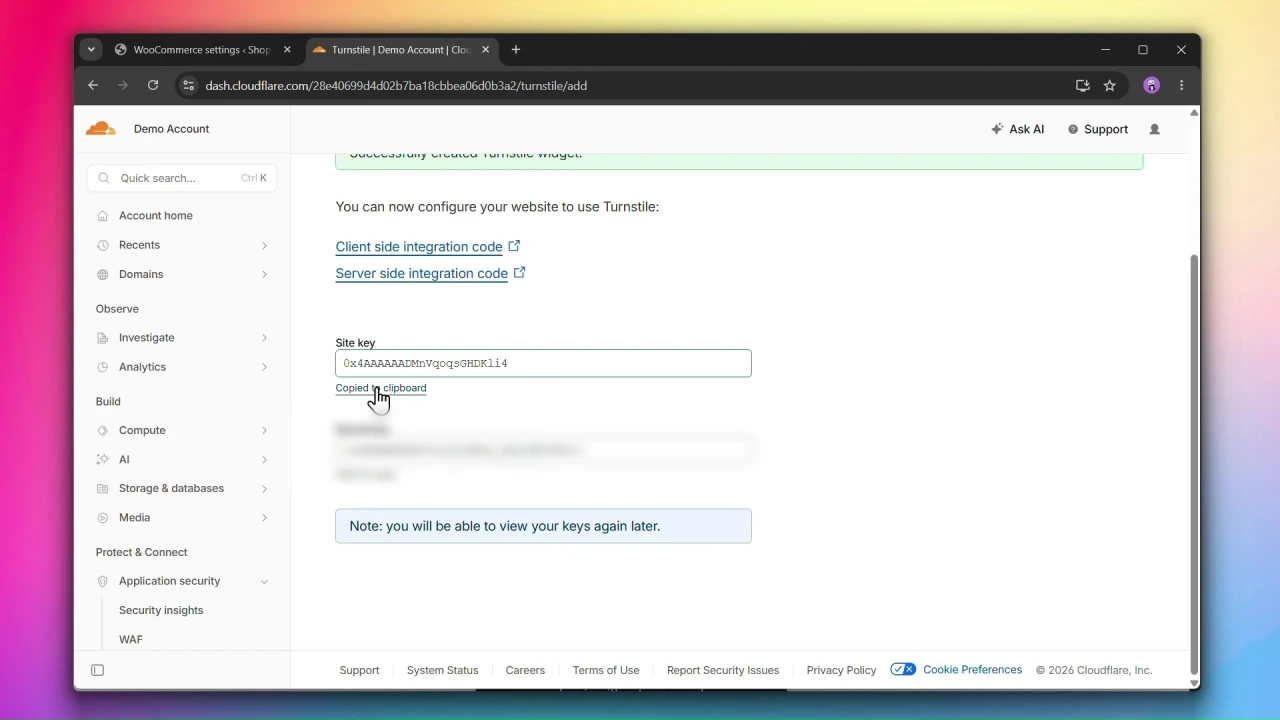
6. Copy the Site Key and Secret Key.
Step 2: Enable Cloudflare Turnstile
Under Cloudflare Turnstile, check Enable Cloudflare Turnstile.
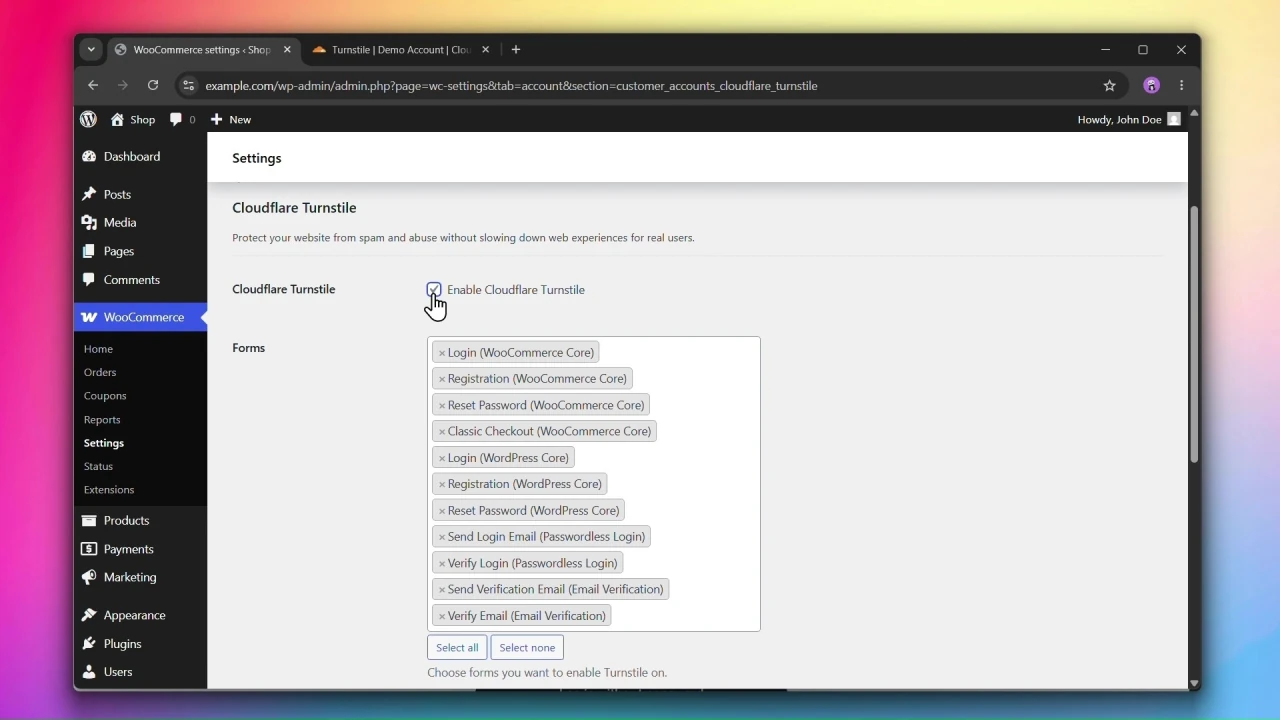
Step 3: Select the forms to protect
Under Forms, select which forms you want Turnstile to appear on.
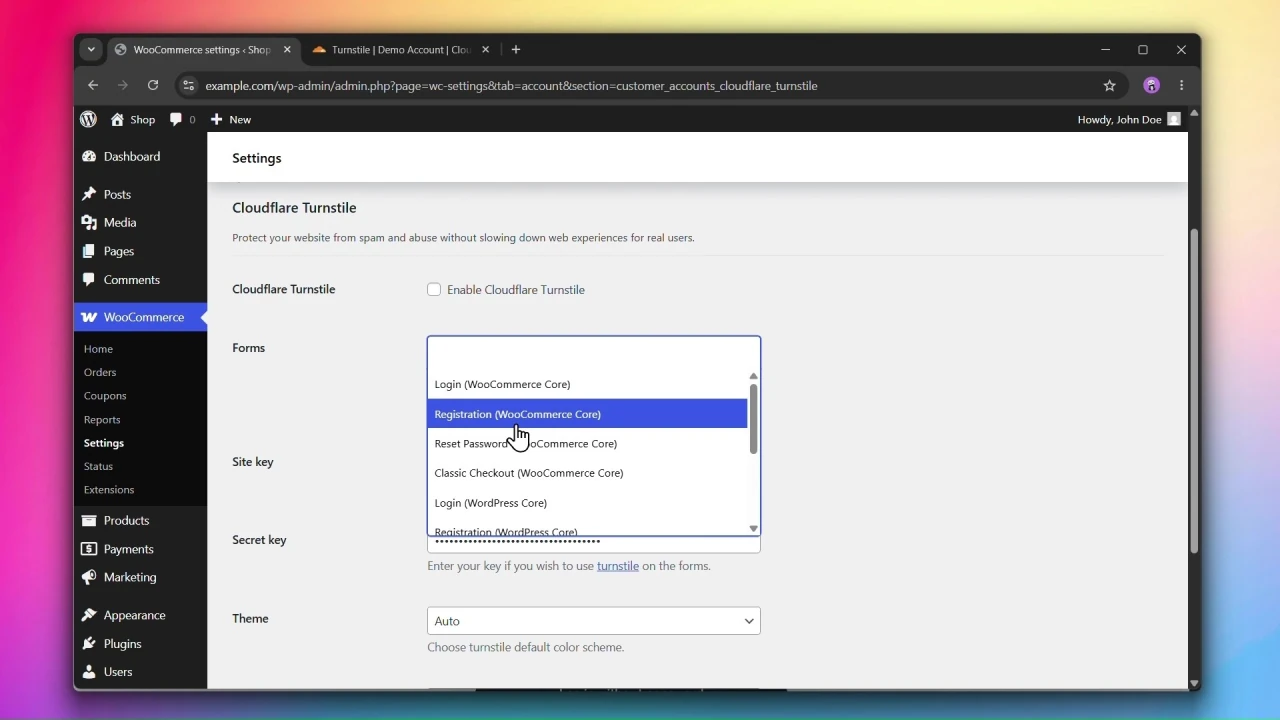
Supported forms
WooCommerce
- Login
- Registration
- Reset Password
- Classic Checkout
WordPress
- Login
- Registration
- Reset Password
Customer Accounts for WooCommerce
- Send Login Email (Passwordless Login)
- Verify Login (Passwordless Login)
- Send Verification Email (Email Verification)
- Verify Email (Email Verification)
For stronger checkout protection, consider enabling the Modern Login experience on checkout — the checkout form is only shown after the user is logged in, reducing exposure to spam and bots.
Step 4: Enter your Site Key and Secret Key
- Paste your Site Key into the Site key field.
- Paste your Secret Key into the Secret key field.
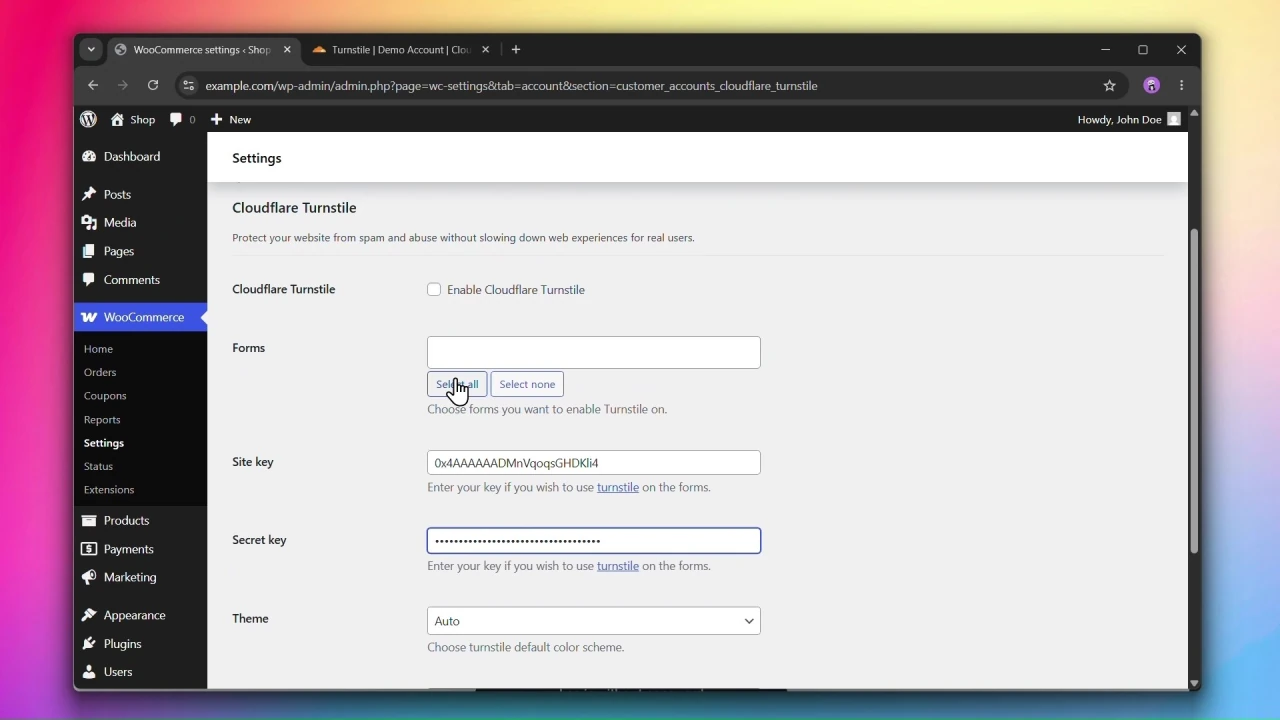
Step 5: Configure the widget appearance
- Theme — choose
Autoto match your site’s color scheme, or set it toLightorDarkmanually. Default:Auto. - Size — choose
Normalfor standard forms,Flexiblefor full-width layouts, orCompactfor tighter spaces. Default:Normal.
Step 6: Click Save changes
Click Save changes to apply your settings.
Combining with Rate Limiting
Cloudflare Turnstile and Rate Limiting work well together. Turnstile blocks bots at the form level before a request is processed, while Rate Limiting caps request frequency by IP for anything that slips through. Using both provides layered protection.